
Learn how to connect PEXA Clear to Realworks and create AML verification cases directly from supported forms.
PEXA is activated at an organisation level, your agency will need to obtain your Client ID and Password from PEXA directly.
How to activate the integration #
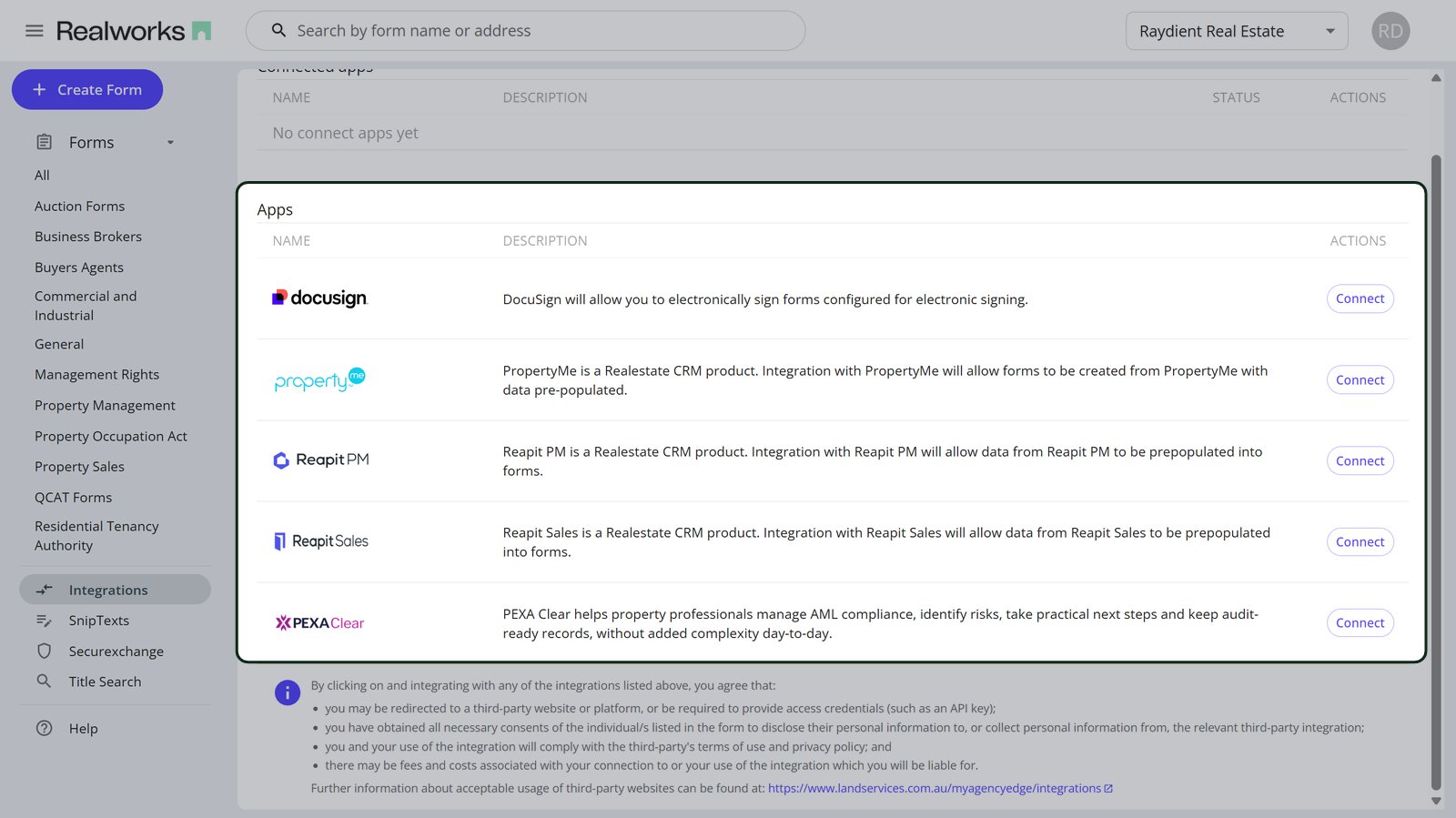
- In Realworks, navigate to the Integrations page via the left panel menu.
- You’ll see a list of available apps, find PEXA Clear and click ‘Connect’
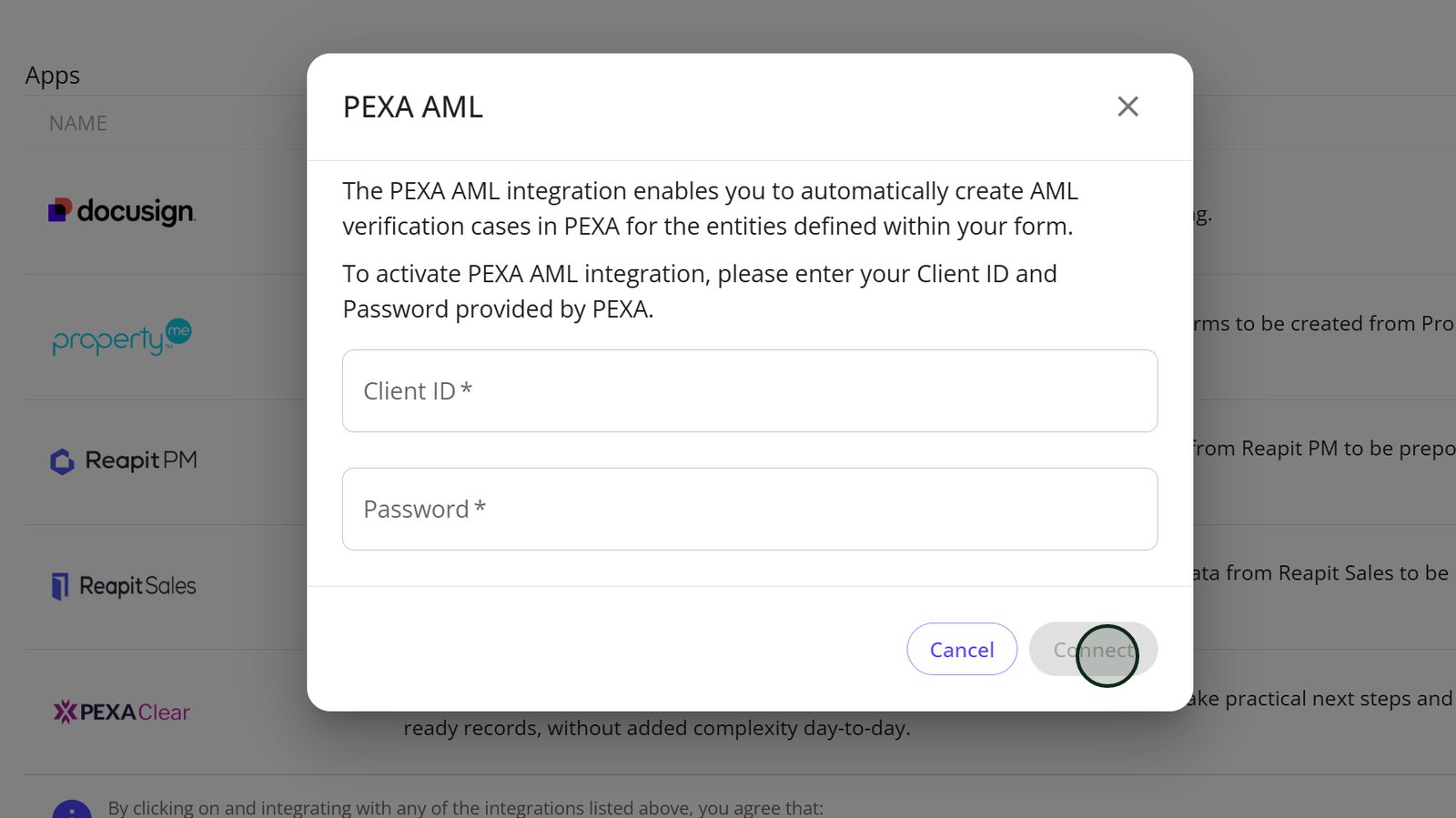
3. In the dialogue box enter your PEXA Client ID and Password and click Connect.
4. Once complete, the integrations page will now show PEXA as a connected app.

Using the PEXA Clear integration #
- Create any of the below forms:
- EF019A
- EF001A
- EF033
- EF051a
- EF005a
- EF002
2. Depending on the form, enter your clients details.
3. On the right side of the screen you’ll find the PEXA Clear tab. Click on this and then click the ‘Create Case’ button.

4. The form will be prefilled with the information populated in the form. Once you have validated the information provided, click on the submit button.

5. Your PEXA case will be created and will be opened up in a new browser window.

6. The PEXA panel in Realworks will be updated to show the AML reference and a direct link to the case for future reference.
